This tutorial was created while our team was working on new projects and researching the possibilities of various speech transcription services and artificial intelligence to process this information. One of the applications was designed to live transcription of the meetings and the ability to transcribe previously recorded meetings (both locally downloaded and transcribed through a link). Additionally, necessary features included support for different subtitle languages and the ability to receive subtitle files of various extensions. The main task of another project was to set up the workflow and obtain the decoding of audio recordings of the dialogues, followed by processing the text information according to the given algorithm.
Therefore, in this first part of the article series, we will explore one of the popular services for speech recognition — the “Speech to Text” Whisper model by OpenAI. In this article, we will introduce you to one of the methods to perform your first transcription.
Short plan how to translate audio into text
Here is a list of steps we will follow to create audion into text transcription:
- Log in to OpenAI Platform: If you already have an existing account on the OpenAI platform, log in using your credentials. If not, you need to create a new account on the OpenAI website.
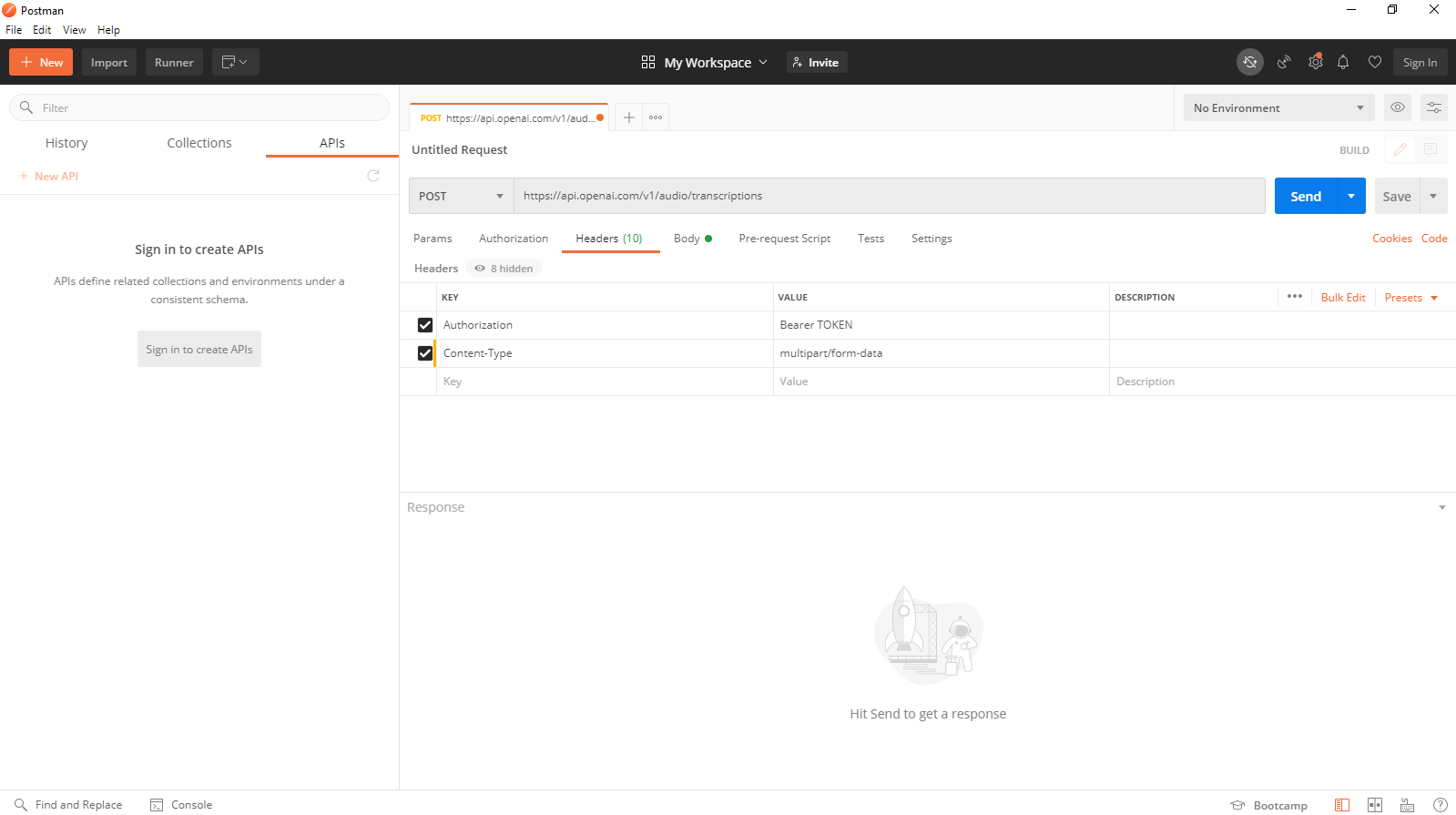
- Create Request in Postman: Once you have access to the OpenAI platform, you can use Postman, a popular API development tool, to make API requests. Open Postman and create a new request to interact with the OpenAI Speech-to-Text API.
- Get API Keys: To use the OpenAI Speech-to-Text API, you’ll need to obtain your API keys from your OpenAI account. These API keys will be used in the Postman request to authenticate and access the API.
- Receive Transcribing Job: With the API keys and the Postman request set up correctly, you can now send an audio file to the Speech-to-Text API. The API will process the audio and return the transcribed text as the response.
Let’s start!
Log in to OpenAI Platform
- Create a Post-request in Postman.
For this, open to “Speech to text”/ “Transcriptions”. Change Library drop-down selector to “curl” (for usage in Postman).

Click the “Copy” button.

Create Request in Postman
- Open Postman application.
Click the “Import” button. It will open an “Import” modal window; choose the ”Raw text” option.

- Paste already copied code into the input field of the modal window and click “Continue”.

Then click “Import”.

Our request was successfully created.
Get API Keys
- Sign up to the OpenAI platform
You need to generate API keys for use in your application or for Postman usage.
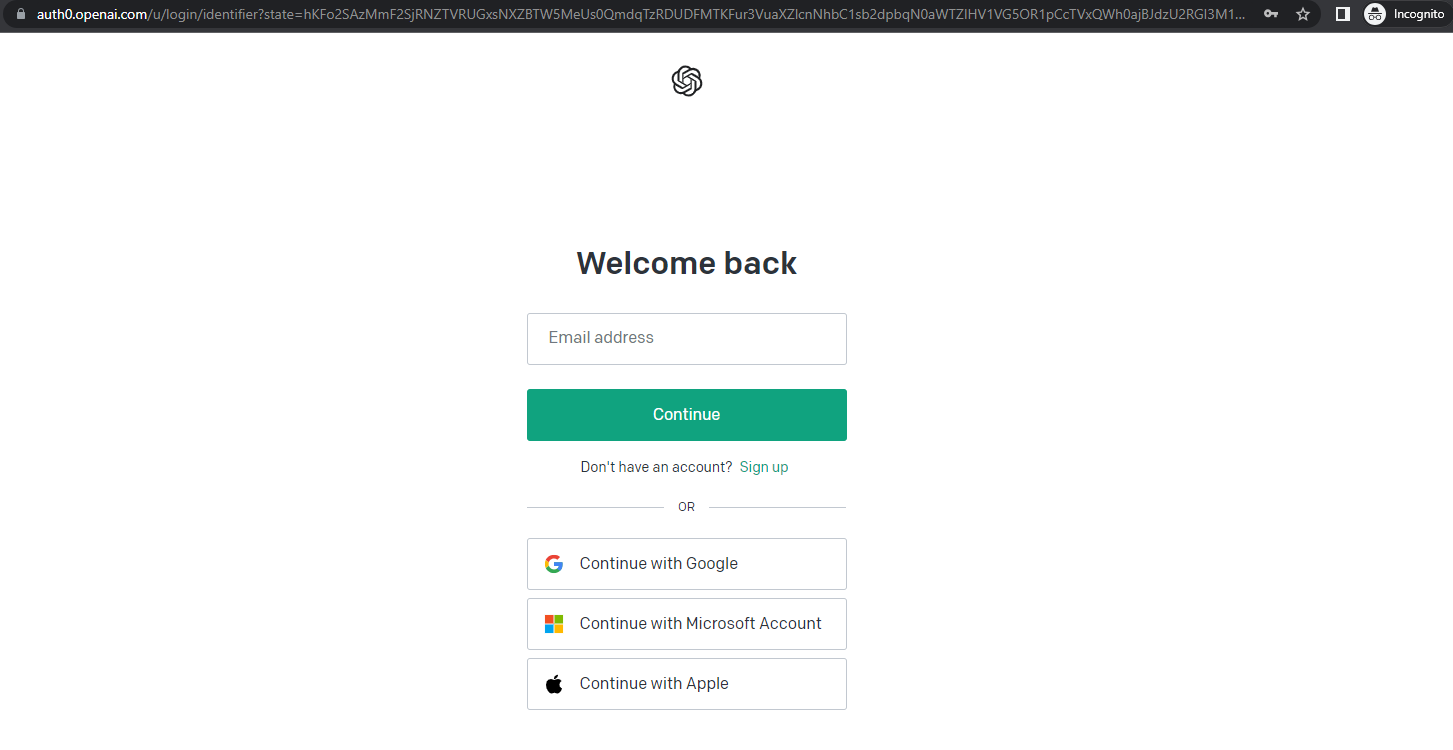
- Navigate to https://platform.openai.com/ and Sign in or Sign up.
How to transcribe audio into text with the “Text to Speech” Whisper model by OpenAI
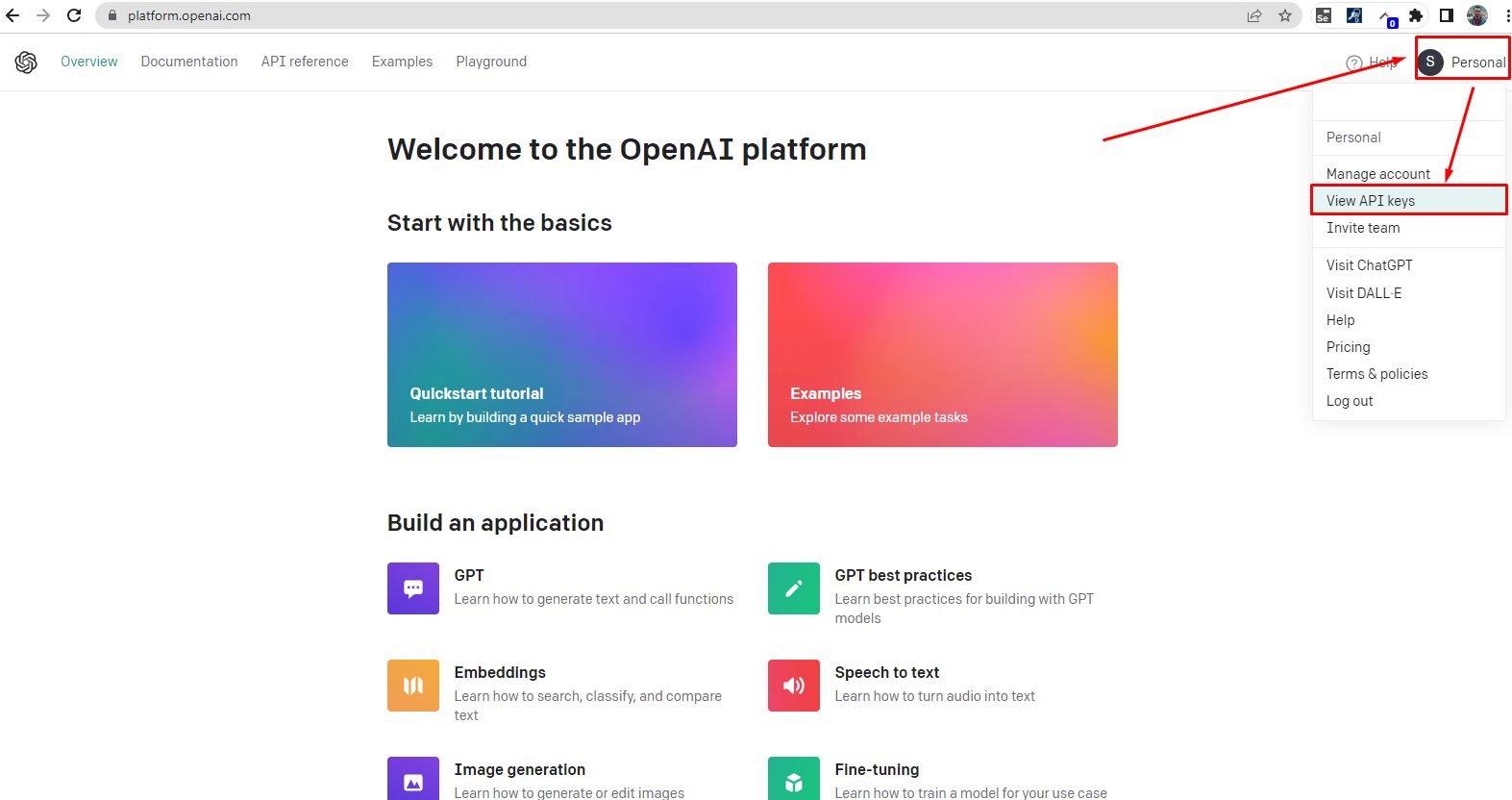
- Go to “Personal”/“View API keys”. An API keys page opens.
- Click “Create new secret key” and a specific modal window opens.
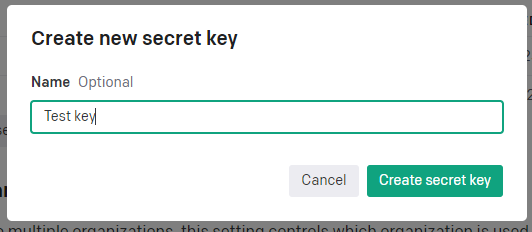
- Fill in the Name of the new key; click “Create secret key”.
 9. Click the “Copy” icon-button on the right side of the key field and then click “Done”.

The API key was created and already copied!
Receive Transcribing Job
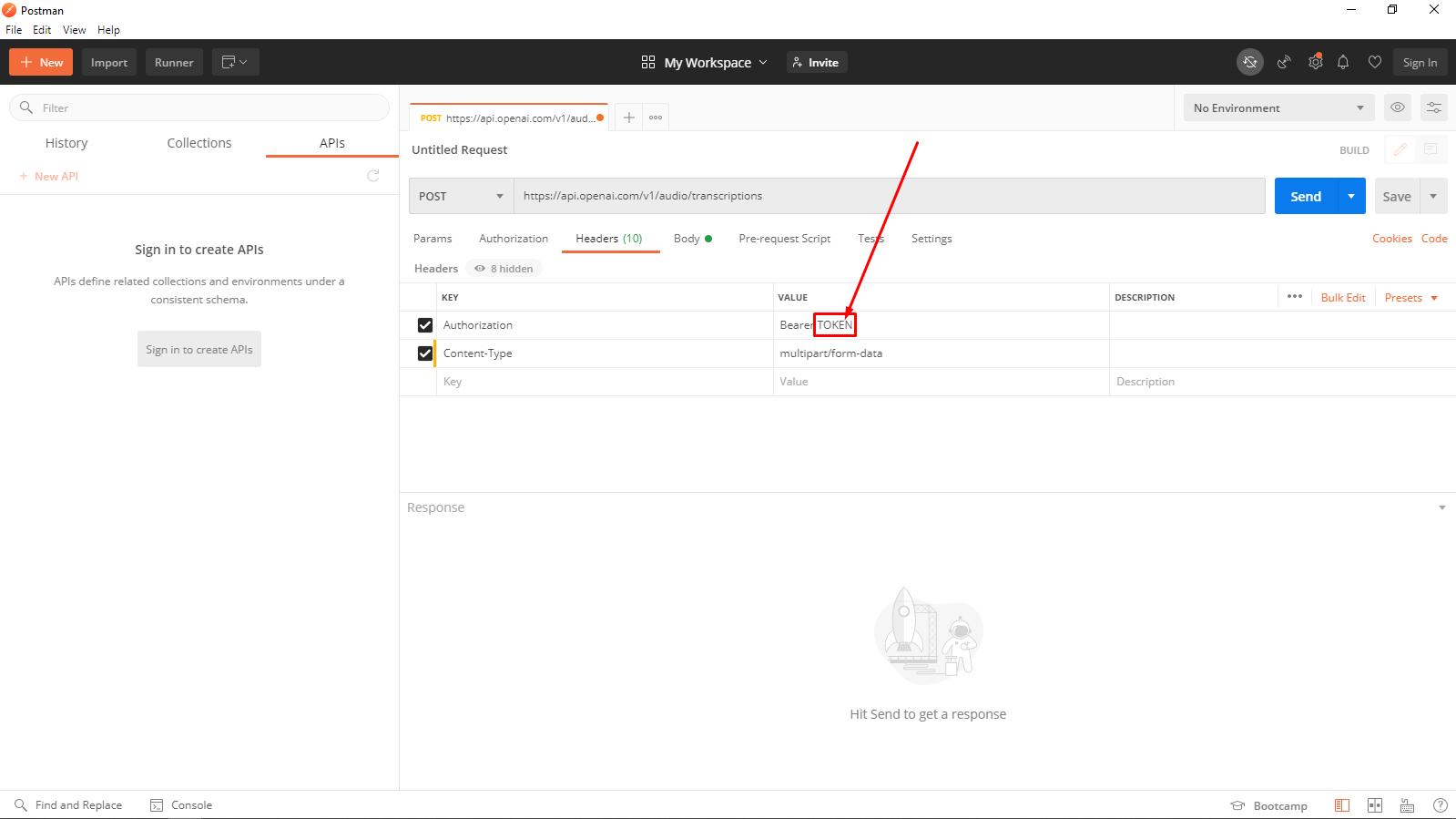
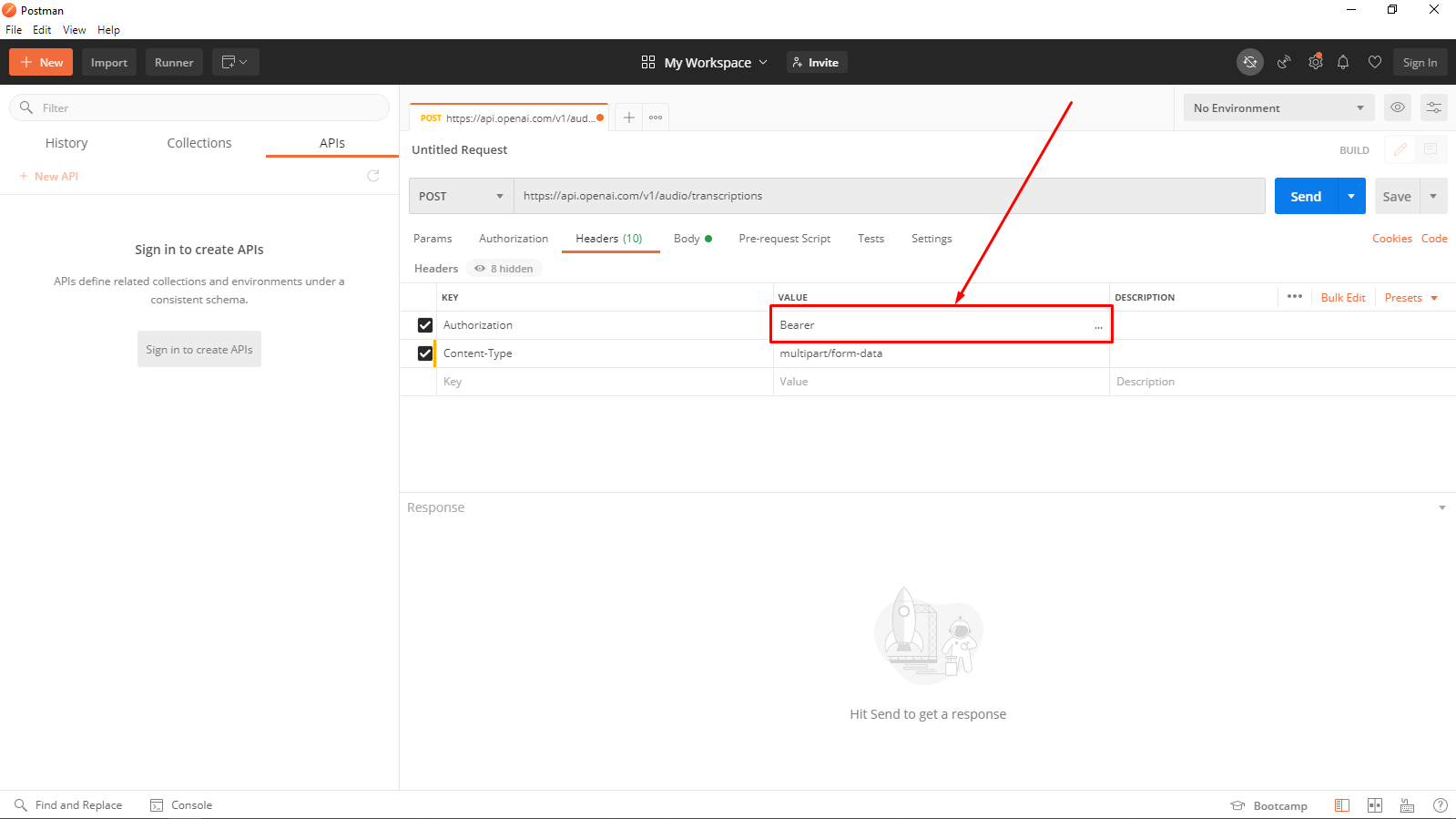
- Go to the Postman application window and instead “Token”
How to transcribe audio into text with the “Text to Speech” Whisper model by OpenAI
Paste just copied key.
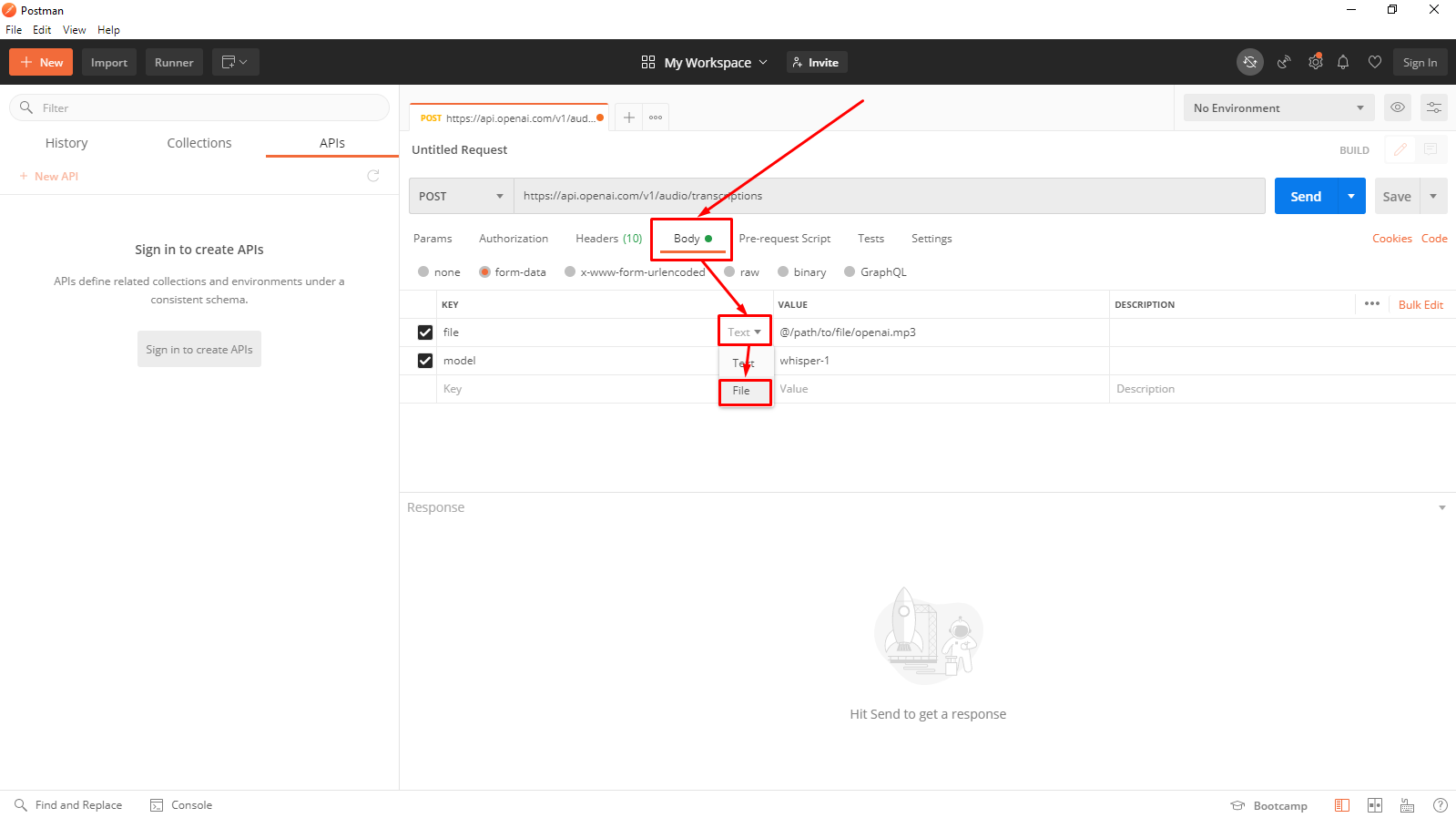
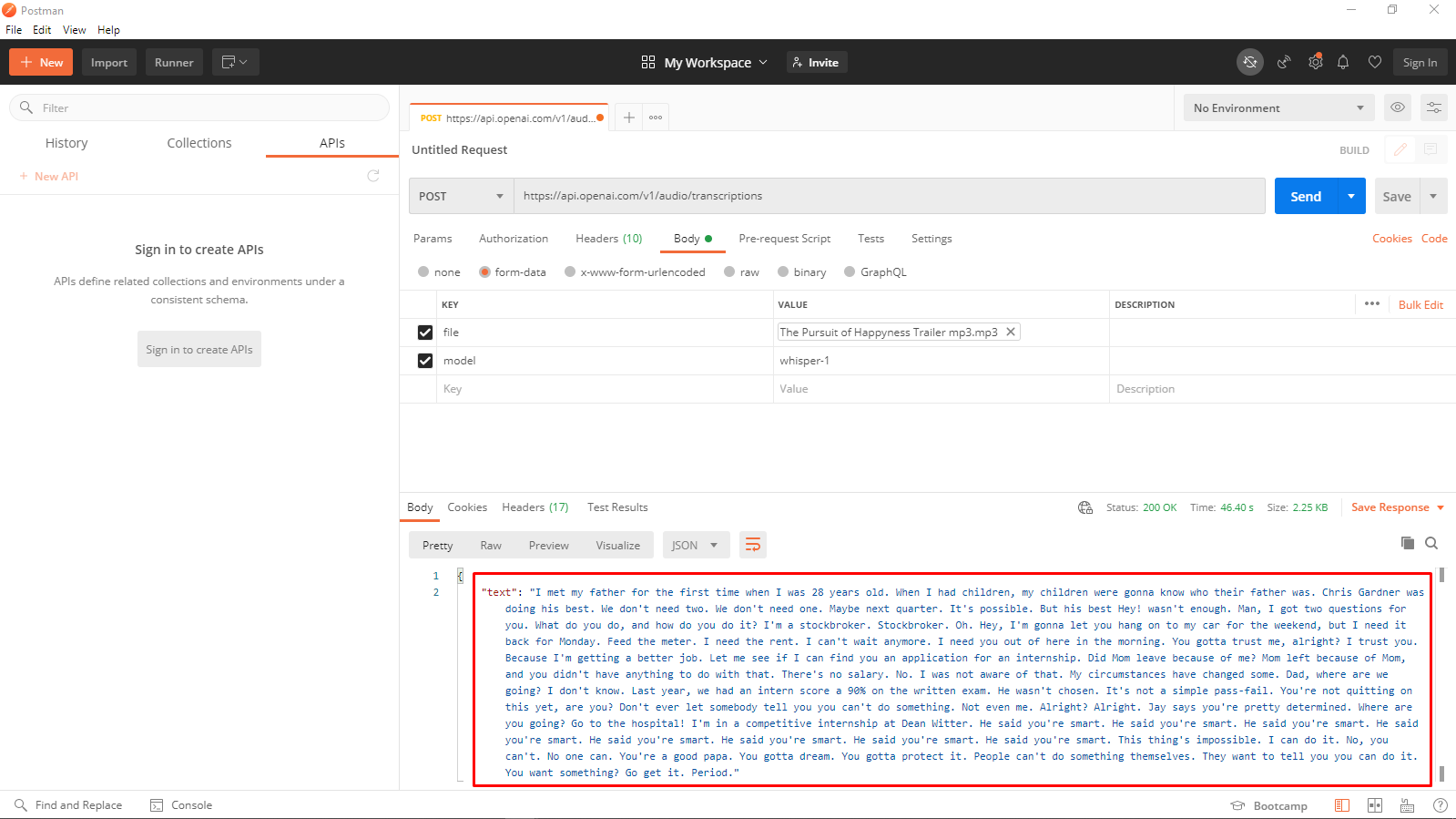
- Navigate to the “Body” tab of this request and choose the “File” type of file.
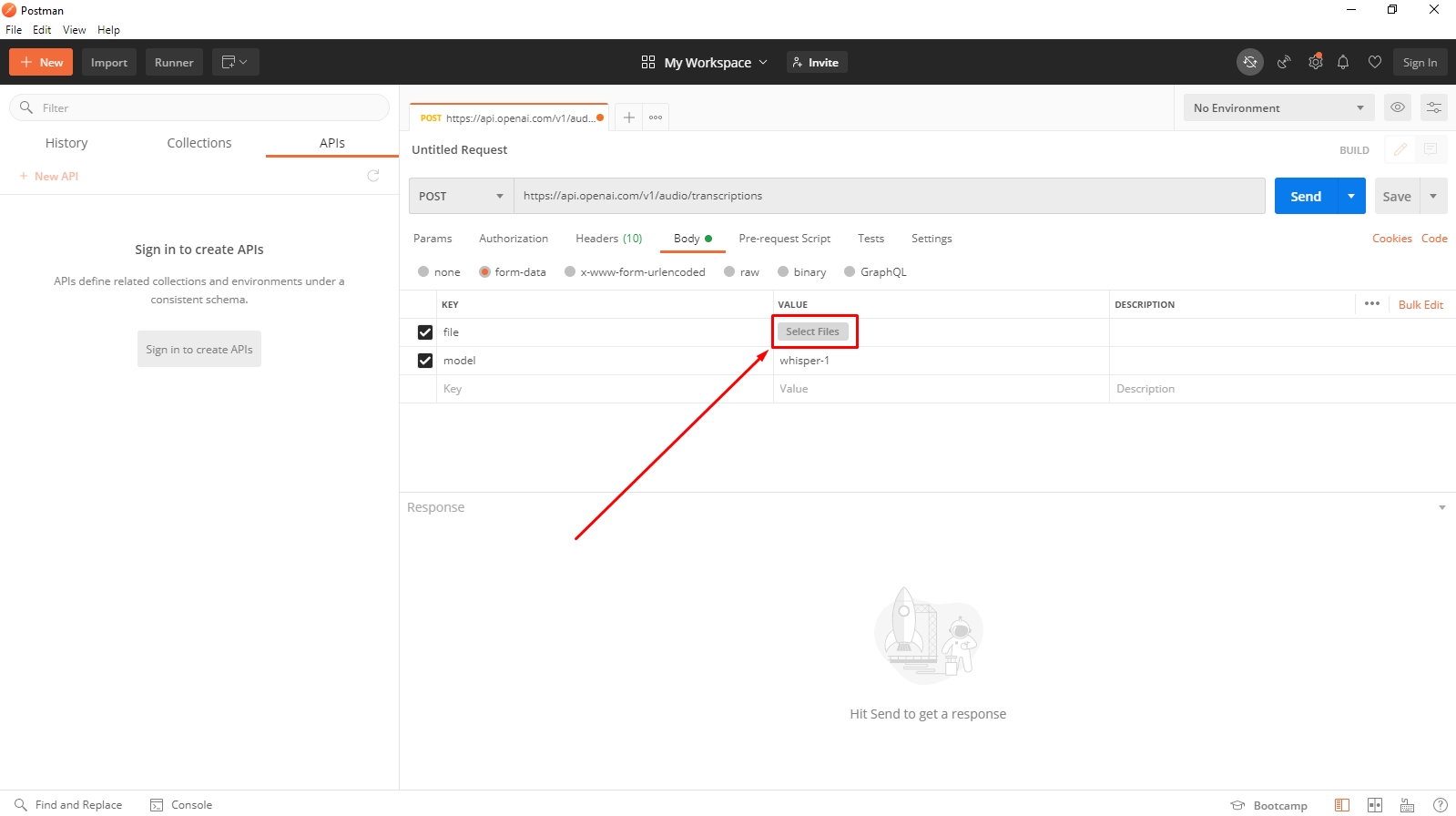
Then select any local file for transcription:
And click the “Send” button.
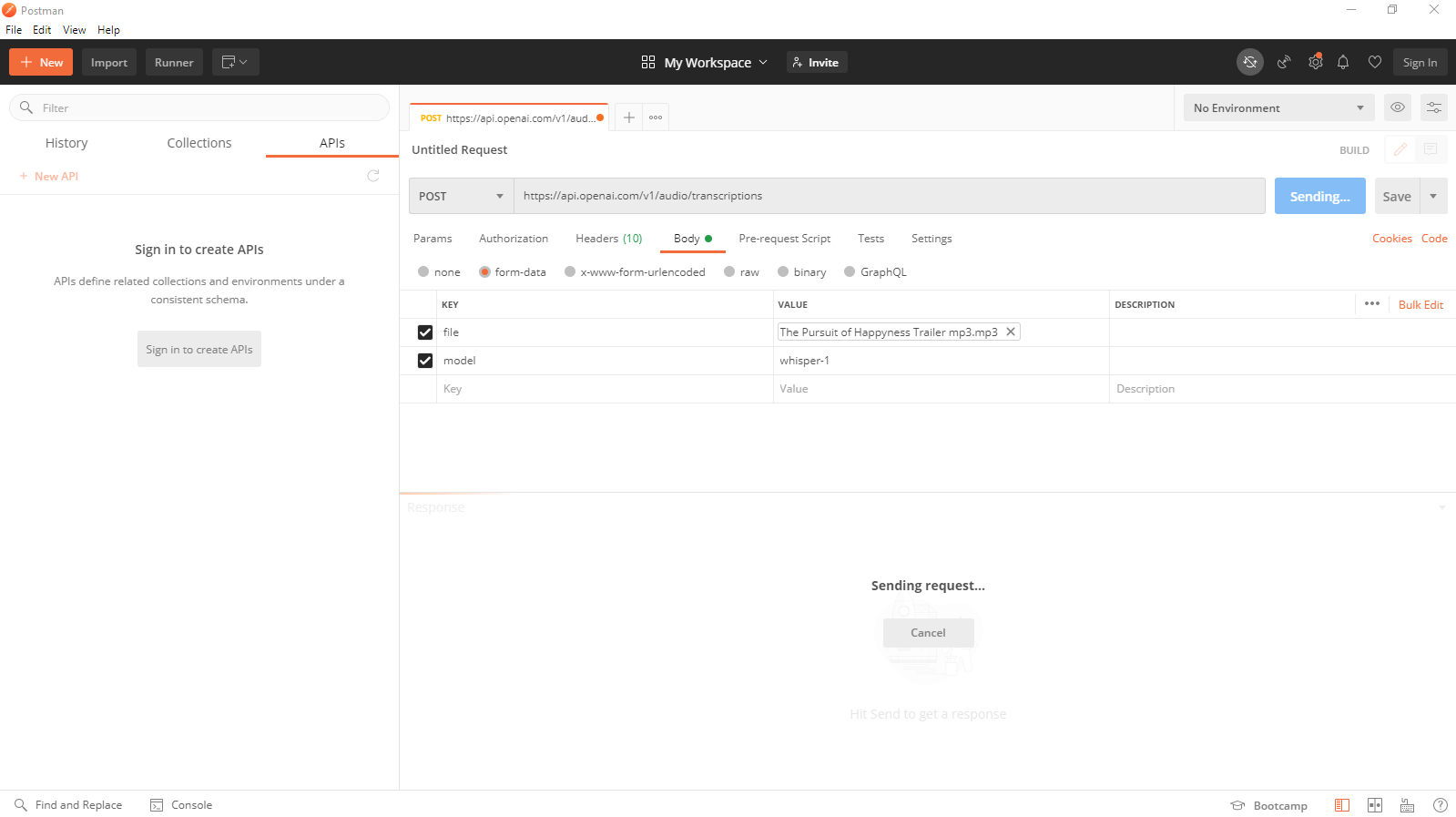
- After sending a request, we receive a transcription of the file.
Conclusion
We have covered the most common and straightforward use case of the “Text to Speech” Whisper model by OpenAI to help you understand the basics. In our future posts, we will introduce you to other effective solutions in this area, such as Microsoft Azure (Speech to Text), AWS Transcribe by Amazon and Google Transcribe. If you need a more complex solution for integrating with your existing or future applications, feel free to contact us for detailed information and services.